
What Happened
Many beginners can write a little HTML and change a color in CSS, but they still feel stuck when three cards refuse to sit in a neat row or a page breaks on a phone. CSS Flexbox solves that specific layout problem by giving you a small, understandable set of rules for arranging elements in a row or column. After working through this guide, you will know what a flex container does, how its child items respond, and how to build a simple responsive page section you can reuse in a real project.
Flexbox is not a replacement for learning HTML and CSS fundamentals. It is a practical next step after you understand elements, classes, selectors, the box model, width, height, margin, and padding. Instead of guessing with repeated margin values, you describe the relationship you want: place these items in a row, leave space between them, let them wrap when the screen gets narrow, or align them in the middle.
Imagine a beginner building a course landing page. The HTML contains three learning benefits, each with a heading and a short paragraph. On a wide screen, the benefits should appear in three columns. On a narrow screen, they should stack so the text stays readable. A beginner often tries to force that result with fixed widths and manual offsets. Flexbox lets the parent section control the layout while the cards remain ordinary HTML elements.
The useful mental model is simple. One element becomes the flex container. Its direct children become flex items. Most of the layout decisions happen on the parent, while a few sizing decisions happen on the children. If the container is a section and the cards are its direct children, the section controls the overall direction, spacing, wrapping, and alignment.
Start with a small structure rather than a full website. A practice page could contain a heading, a short introduction, and a section with three cards. Give the section a class such as benefits and each card a class such as benefit-card. The names do not matter as much as the relationship. The cards must be direct children of the element receiving display: flex.
The first CSS declaration to understand is display: flex. When you add it to the parent, the browser changes the way its direct children are laid out. The default direction is a horizontal row, so three cards that previously appeared one above another may now sit side by side. That one change is useful, but it is only the beginning. Good Flexbox work comes from making the intended behavior explicit.
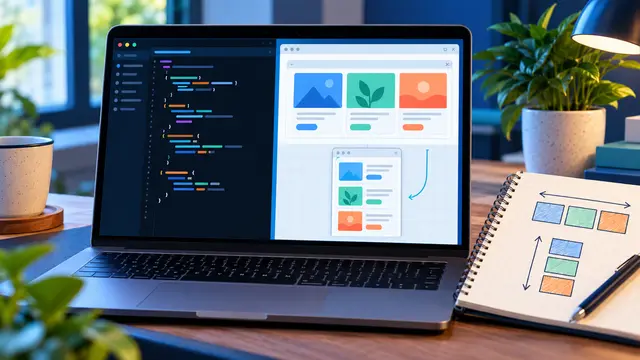
The main axis is the direction in which the items are arranged. With flex-direction: row, the main axis runs from left to right. With flex-direction: column, it runs from top to bottom. The cross axis runs perpendicular to the main axis. This language can feel abstract at first, but it becomes easier when you draw two arrows on paper and label the direction of the items and the direction across them.
Use justify-content to distribute items along the main axis. Values such as flex-start, center, space-between, and space-around produce different spacing patterns. Use align-items to position items along the cross axis. If the row is horizontal, align-items controls vertical alignment. If the direction is a column, it controls horizontal alignment. Keeping the two axes separate prevents a common beginner mistake: changing a property without knowing which direction it affects.
Here is a practical sequence for a first exercise:
- Create three equal-looking cards with a heading, two sentences, and a small action link.
- Apply display: flex to the card section and observe the default row.
- Add gap: 1rem so spacing belongs to the layout instead of scattered margins.
- Try justify-content: space-between, then center, and note what changes.
- Change align-items and give one card a longer paragraph so you can see the difference.
The gap property deserves special attention because it keeps spacing readable. A beginner may put a right margin on every card, then remove that margin from the last card with another selector. Gap expresses the relationship directly. It also reduces the number of special cases you need to remember when the number of items changes.
Flex items can share available space through flex-grow, flex-shrink, and flex-basis. You do not need to memorize every detail before building a useful page. A common starting point is flex: 1, which tells several sibling items to grow evenly when there is room. You can also use a reasonable basis, such as flex: 1 1 16rem, to say that each card prefers a width around 16rem but may grow or shrink as the container changes.
Responsive behavior is where Flexbox becomes especially useful. A row that looks good on a wide laptop can become cramped on a phone. Add flex-wrap: wrap to let items move onto another line when they no longer fit. Then give each item a flexible basis rather than a rigid width. A browser can make two cards fit on one line at one viewport and stack all three at another without a separate rule for every screen size.
You still need to test the result. Resize the browser slowly and watch for the moment when headings wrap awkwardly, buttons become too narrow, or the cards create an uncomfortable reading width. Responsive design is not only about avoiding horizontal scrolling. It is about keeping the content understandable as the available space changes.
Why It Matters for Businesses
A small frontend skill can have a direct business effect. Many organizations publish service pages, course pages, forms, pricing sections, and internal tools that need to work on both desktop and mobile. A page that is difficult to scan can hide the next step a visitor should take. A layout that collapses poorly can make a credible company look unfinished, even when the information is strong.
Flexbox helps a learner understand the difference between content and presentation. The HTML can describe the benefits in a logical order, while the CSS determines how those benefits appear at different widths. That separation makes a page easier to update. A team can add a fourth card, shorten a paragraph, or change the order of a call to action without rebuilding the entire layout with manual positioning.
This is also a useful skill for working adults who collaborate with designers, marketers, or no-code platform owners. You may not become the person responsible for an entire website, but knowing how layout rules work helps you explain a problem clearly. Instead of saying the cards look weird, you can say the container needs wrapping, the gap is too large, or one item has an inflexible basis.
For a small business, the first practical benefits of Flexbox include:
- Making a service comparison section readable on phones and laptops.
- Keeping feature cards aligned without editing every card separately.
- Building a clean row of form fields that can stack when space is limited.
- Creating a simple navigation or call-to-action area with consistent spacing.
- Updating page content without adding a new collection of position fixes.
Flexbox also builds confidence because the feedback loop is immediate. You change one declaration, refresh the page, and see the result. That makes it a good subject for a short self-paced course. A learner can study one concept, test it in a small file, and understand the effect without waiting for a large application to compile.
Businesses benefit when employees can make small, safe improvements independently. A marketing specialist who can adjust a card layout may not need to wait for a developer to fix every spacing issue. A junior developer who understands the axes can debug a responsive section faster. A business owner who is learning the basics can recognize whether a proposed fix solves the structure or only hides the symptom at one screen size.
The goal is not to turn every employee into a frontend engineer. The goal is to give people enough practical knowledge to communicate, test, and make sensible changes. HTML and CSS courses are valuable when they connect a rule to a visible outcome, such as a page section that remains clear on a phone.
The Practical Automation Opportunity
Flexbox is a coding skill, but it also fits into a practical automation and AI learning path. Modern tools can generate a first draft of a page, convert a design into starter code, or suggest a CSS rule. A learner who understands Flexbox can review that output instead of accepting it blindly. The human skill is knowing what the layout should do, checking whether the code expresses that goal, and testing the result in more than one viewport.
Try a small practice project that combines a form, a data source, and a responsive display. For example, create a simple workshop registration page with three course cards and a short signup form. You can use sample data rather than a real customer system. Once the page works, ask an AI assistant to suggest two layout improvements, then inspect every suggested declaration and keep only the changes you can explain.
A reliable learning workflow looks like this:
- Write the HTML first and confirm that the content order makes sense without styling.
- Add display: flex to the parent and identify the main axis.
- Use gap, justify-content, and align-items one at a time so each effect is clear.
- Add wrapping and a flexible basis before reaching for a media query.
- Resize the page, record the first awkward breakpoint, and improve the rule causing it.
- Ask for feedback from a browser inspector or an AI tool, then verify the suggestion yourself.
This process teaches more than copying a finished snippet. It creates a small experiment in which each decision has an observable result. That is the same habit needed for larger frontend work, no-code workflow design, and practical AI use: define the outcome, change one variable, inspect the result, and keep a record of what worked.
One useful exercise is to intentionally break the layout. Remove flex-wrap and shrink the viewport. Give one card a very long heading. Replace gap with individual margins. Then restore the layout one change at a time. Debugging a controlled failure helps you recognize the same pattern when a real page arrives with a confusing stylesheet.
Another exercise is to compare Flexbox with a fixed-position approach. Place cards with arbitrary left offsets, resize the page, and observe how quickly the design becomes fragile. Then rebuild the section with a flex container, gap, wrapping, and a sensible basis. The comparison makes the value of relationship-based layout concrete instead of theoretical.
If you are studying with limited time, do not try to learn every CSS property in one sitting. A focused course can give you a smaller sequence: selectors and the box model first, Flexbox next, responsive patterns after that, and a project at the end. One completed section is more useful than a long list of definitions you have never applied.
The same discipline helps when automation tools are involved. A generated landing page may contain unnecessary wrappers, conflicting widths, or a media query that fixes only one device. You can ask targeted questions such as, “Which element is the flex container?” or “Why does this item shrink below its readable width?” Specific questions produce better learning than asking for a complete redesign you cannot evaluate.
Business Takeaway
CSS Flexbox is a compact skill with a visible payoff: it helps a beginner build page sections that stay organized as content and screen sizes change. It also teaches a broader habit that matters in AI-assisted work: understand the structure before trusting the output. When you know which element controls the layout, which axis the rule affects, and what should happen when space runs out, you can improve generated code instead of guessing at it.
This week, create one three-card section in a blank HTML file, make it wrap cleanly on a narrow screen, and write down the purpose of every Flexbox declaration you keep. That small project can become your first piece of frontend practice and a clear reason to continue into a short HTML and CSS course.