
What Happened
JavaScript debugging is the skill of finding out why a page does not behave as you expected, then making one small, testable change at a time. For beginners, the hard part is often not writing a line of code. It is knowing where to look when a button does nothing, a calculation shows the wrong result, or the browser reports an error that feels impossible to understand.
This guide gives you a repeatable first debugging workflow. You will learn how to read a browser console message, isolate the smallest failing example, use console.log without creating more confusion, inspect values, and fix common beginner mistakes involving spelling, data types, scope, and event handlers. These are practical skills you can use while building a small website this week.
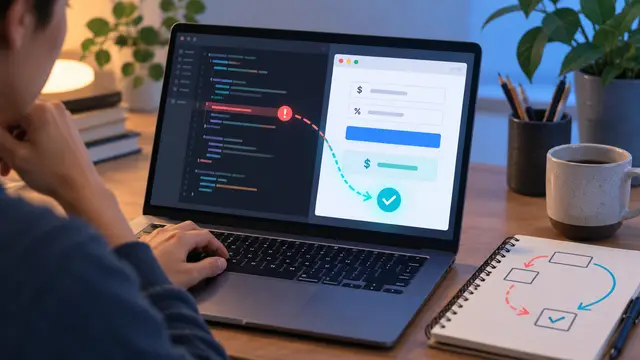
Imagine a learner building a simple tip calculator. The page has an amount field, a percentage field, and a Calculate button. The button appears, but clicking it produces no visible result. A beginner may rewrite the entire script or search for a completely different code example. A better first move is to ask a narrower question: did the click event run, and if it ran, which value became wrong?
Debugging starts with observation. The browser is already giving you clues through the console, the page itself, and the code editor. Your job is to collect those clues before changing several things at once. If you change five lines and the page begins to work, you may not know which change mattered. If it still fails, you have made the trail harder to follow.
The browser console is usually the first place to check. In most modern browsers, you can open developer tools and choose the Console panel. A red error message often includes three useful pieces of information: the kind of error, a short explanation, and a file name with a line number. The message may not tell you the final fix, but it can point you toward the broken assumption.
Common messages have recognizable patterns:
- ReferenceError often means JavaScript cannot find a variable or function name you used.
- TypeError often means a value does not support the operation you attempted.
- SyntaxError often means the code cannot be parsed because punctuation or structure is invalid.
- A message about null may mean your selector did not find the HTML element you expected.
- A message about undefined may mean a function returned no value or an object property is missing.
Do not treat an error label as a judgment about your ability. It is a category. Read the rest of the message, then open the referenced line. If the browser points to a line that looks harmless, inspect the expressions used on that line and the code that prepared their values. The first visible failure is sometimes downstream from the original mistake.
The next useful habit is to reduce the problem. If a full page includes a form, a menu, a timer, and a fetch request, temporarily focus on one behavior. Ask whether the button can be selected. Ask whether the event handler runs. Ask whether the handler receives the expected input. Each question gives you a smaller test.
For example, this short check can tell you whether a click handler is connected:
console.log("script loaded");
button.addEventListener("click", function () {
console.log("button clicked");
});
If you see neither message, the script may not be loading or the JavaScript file may not be connected to the page. If you see the first message but not the second, the button reference or event setup may be wrong. If you see both messages, the problem is probably inside the rest of the handler.
The `console.log` function is useful because it lets you inspect the path your code takes. Use it with a label that describes the value, not only the value itself. `console.log(total)` is less helpful than `console.log("total before display:", total)`. Good labels make a long console output easier to scan.
Avoid logging every character of a long object until you understand the main flow. Start with three questions: did this section run, what value entered it, and what value left it? Then remove temporary logs after the fix or replace them with a cleaner comment if they explain something important.
Values can look correct while having the wrong type. Text typed into an input field is normally a string, even when it contains numbers. If you add two input values without converting them, JavaScript may join the text instead of doing arithmetic. The result of adding `"12"` and `"3"` can become `"123"` rather than the number `15`.
When a calculation behaves strangely, inspect both value and type:
console.log("amount:", amount, "type:", typeof amount);
If the value is text, convert it deliberately with a method such as `Number()` and decide what should happen when the input is empty or invalid. Debugging is not only about silencing the error. It is about making the intended data flow clear.
Scope is another frequent source of confusion. A variable declared inside a function cannot automatically be used outside that function. A variable declared inside a block with `let` or `const` is limited to that block. If the console says a name is not defined, check where the name was declared and where it is being used.
Spelling and capitalization matter too. `userName`, `username`, and `UserName` are different names. When a value appears as undefined, compare the declaration, the assignment, and every later use letter by letter. Modern editors can help with autocomplete, but you still need to understand which name is supposed to carry the value.
One especially common browser problem happens when JavaScript runs before the HTML element exists. A selector such as `document.querySelector("#calculate")` can return null if the script executes before the button has been parsed. You can solve this by placing the script near the end of the body or by waiting for the document to load before selecting elements. The important debugging question is not simply whether the selector looks right. It is whether the selector runs at a time when the element exists.
A debugging session becomes easier when every test answers one small question.
A practical sequence looks like this:
- Reproduce the problem and write down the exact behavior you see.
- Open the console and read the first relevant error from top to bottom.
- Go to the file and line named in the message.
- Add one targeted log or check before the suspected operation.
- Refresh the page and test the same action again.
- Change one cause at a time, then retest.
- Remove temporary debugging output and test the complete user flow.
This sequence turns debugging from guessing into a small experiment. You do not need to understand the whole application to begin. You only need a clear next question.
Why It Matters for Businesses
Businesses rely on small web interactions everywhere. A form collects a lead, a quote calculator helps a prospect estimate a project, a support page reveals an answer, and an internal dashboard highlights a task. When a simple interaction fails, the cost is not limited to one broken line of code. It can become a missed inquiry, an extra support request, or a team member who stops trusting the tool.
JavaScript debugging is valuable because it helps a learner fix small problems before they become expensive handoffs. A marketing coordinator who can identify a failed form event can give a developer a useful description instead of saying only that the page is broken. A small business owner learning to maintain a site can distinguish a content edit from a code issue. A career switcher can show an interviewer how they investigate a bug, not just how they write a successful demo.
Teams also benefit from a shared debugging vocabulary. A useful report can include:
- What the person did immediately before the problem appeared.
- What the page did instead of the expected result.
- The exact console message and line number.
- The input values used during the test.
- Whether the issue happens every time or only with certain values.
- The smallest change that made the behavior different.
That information shortens the back-and-forth between a learner, a teammate, and a technical reviewer. It also protects the team from vague fixes. A change made only because it “seemed to work” may create a second problem in another browser or with another input.
Debugging habits are particularly useful for busy professionals because they reduce the amount of time spent staring at a large code sample. A beginner-friendly course can teach the browser tools, naming habits, and test steps that make practice feel manageable. The learner does not need a computer science degree to inspect a value, follow a line number, or compare an expected result with an actual result.
There is also a reliability benefit. Clear debugging encourages you to think about empty inputs, unexpected text, slow loading, and repeated clicks. Those cases are often missed when a developer tests only the happy path. For a customer-facing page, handling those cases can make the experience feel intentional rather than fragile.
The skill supports collaboration with AI coding tools as well. An AI assistant can suggest a fix, but the learner still needs to describe the problem and verify the result. If you paste an error message, the surrounding code, and the expected behavior, you are more likely to receive a useful explanation. If you accept a large rewrite without testing the underlying issue, you may replace a small bug with a harder-to-understand system.
The Practical Automation Opportunity
JavaScript debugging becomes easier to remember when it is tied to a small project with visible feedback. Build a one-page tool instead of attempting a large application. A project can be simple enough to finish in an afternoon and rich enough to produce realistic mistakes.
Good first projects include:
- A tip calculator that reads an amount and percentage, then displays the result.
- A task list that adds a typed item and marks it complete when clicked.
- A character counter that updates as someone types in a message box.
- A product filter that shows or hides cards based on a selected category.
- A password-strength practice meter that explains which checks are missing.
For each project, write down the intended behavior before you code. For the tip calculator, the plan might say: when the button is clicked, read the two inputs, convert them to numbers, calculate the tip, and display a currency value. That sentence becomes a checklist for debugging. If the click runs but the display is blank, you know to inspect the calculation and the output element rather than redesigning the page.
You can create a simple practice log with four columns:
- Test: the action you performed.
- Expected: what should happen.
- Actual: what happened instead.
- Next check: the smallest question to investigate.
This log may feel formal for a small page, but it prevents repeated guesses. It also creates a portfolio artifact. When you explain how you found a bug, you can show the original symptom, the evidence you collected, and the final change. That is more convincing than showing only the finished screen.
When using a no-code or AI-assisted workflow around a coding project, keep the review step visible. You might ask an AI tool to explain a console error, but then test its suggestion in a copy of the project. You might use a task automation to save practice notes, but do not let it overwrite your source files without a review. The lesson is the same across coding and automation: the tool can accelerate a step, while the learner remains responsible for checking the result.
A focused self-paced learning path can look like this:
- Learn variables, strings, numbers, conditions, functions, and arrays.
- Connect JavaScript to a page with selectors and event listeners.
- Build one small interaction with a clear expected result.
- Intentionally introduce one error and practice reading the console.
- Add checks for empty, invalid, or unexpected input.
- Refactor the working code so names and functions explain the behavior.
Do not wait until you feel advanced before practicing debugging. Debugging is how the concepts become real. A value that looks abstract in a lesson becomes understandable when you watch it change after a user clicks a button. A scope rule is easier to remember after a console message shows that a variable is unavailable outside its block.
If you are choosing a course, look for one that includes browser-based practice, short exercises, and projects that produce visible results. You should be able to pause, reproduce a mistake, and return to the exact concept that explains it. One-time, self-paced access can work well for this kind of learning because you can revisit the same lesson when a real bug appears in your project.
Business Takeaway
JavaScript debugging is not a mysterious talent reserved for experienced developers. It is a repeatable process of observing behavior, reading evidence, checking values, and making controlled changes. The more consistently you use that process, the less intimidating a broken page becomes.
For a learner, the immediate goal is not to memorize every browser error. It is to build confidence that every error can be narrowed into a question. For a business, that confidence helps employees maintain small tools, communicate technical problems clearly, and use AI coding assistance with appropriate review.
This week, build a tiny tip calculator or task list, intentionally introduce one bug, and keep a four-line record of the expected result, actual result, console clue, and fix.