What Happened
When a first web page looks wrong, beginners often change several lines of HTML or CSS at once and hope the next refresh explains what happened. Browser DevTools gives you a calmer way to learn: inspect the element that is visible, test one change, and trace the result back to the code. By the end of this guide, you will understand how to use the Elements, Console, and Network panels to investigate a small page without guessing.
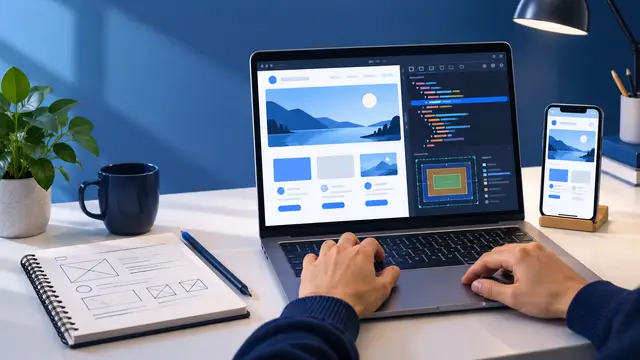
DevTools is built into browsers such as Chrome, Edge, Firefox, and Safari. It is not an advanced tool reserved for professional developers. It is a learning workspace that shows how a browser interprets your files. You can see the HTML tree, the styles that win when rules conflict, the space around an element, and the errors that stop JavaScript from working.
Imagine a beginner project with a heading, a short description, a button, and a card that should sit in the center of the page. The heading is too close to the edge. The button does not respond. The card is visible in the editor but not in the browser. Each problem feels different, yet the investigation can follow the same small routine.
- Reproduce the problem in the browser.
- Inspect the element that looks wrong or fails to respond.
- Test one temporary change in DevTools.
- Record the change and make the permanent edit in your project files.
This distinction matters: a DevTools edit is temporary. It changes the page currently loaded in your browser, but it does not save your source code. That temporary nature is useful because it lets you ask questions safely. What if the padding is larger? What if the element is hidden by `display: none`? What if the button's click handler never loaded? You can test the idea before touching the project.
Start with a simple practice page. Create an HTML file with a main heading, a paragraph, a button, and a section with a class such as `practice-card`. Link a CSS file and a JavaScript file, even if the first version only contains a few rules. A small page gives you enough moving parts to investigate while keeping the cause of each problem understandable.
Open the page in a browser, then open DevTools with the browser menu or the keyboard shortcut shown by your operating system. The exact shortcut varies, so the important habit is not memorizing a key combination. The important habit is opening the tool while the problem is visible.
For your first exercise, do not try to fix everything. Ask one question: which rule controls the card's width? Select the card with the element picker, then read the Styles panel. You will see matching selectors, crossed-out declarations, inherited styles, and the final values the browser uses. This is the beginning of a useful mental model: CSS is not a list of instructions applied in isolation. It is a set of competing rules resolved by specificity, order, inheritance, and layout behavior.
A beginner who learns to inspect before editing builds a stronger foundation than someone who memorizes random fixes. The goal is not to make DevTools do the work for you. The goal is to use it as a clear window into the browser's decisions.
Why It Matters for Businesses
Small businesses need people who can make practical changes to websites, internal tools, forms, and landing pages without waiting for every minor issue to become a large project. A staff member who can diagnose a spacing problem, verify a broken button, or identify a missing asset can shorten the path between an idea and a usable page.
This does not mean every employee must become a full-time developer. It means basic browser investigation can make communication more precise. Compare these two messages:
- The page is broken somewhere.
- The form submits, but the browser console reports a missing function after the user clicks the button.
The second message gives a developer or support teammate a starting point. It names the action, the symptom, and the evidence. DevTools helps beginners collect that evidence.
The skill also reduces unnecessary rework. Suppose a team is preparing a simple event page and the call-to-action button appears below the visible area on a phone. A quick inspection can show whether the issue comes from fixed width, excess margin, a flexbox alignment rule, or an overflowing child. The person investigating does not need to know every responsive design pattern yet. They need to know how to look at the rendered result and test a likely cause.
Browser inspection is valuable in several workplace situations:
- A marketing coordinator checks whether a campaign form is actually visible and usable at a smaller viewport.
- A support specialist gathers a console error and browser version before escalating a customer issue.
- A small business owner verifies that a page image loads and that its alternative text is present.
- A junior developer confirms whether a new CSS rule affects only one component or changes the whole page.
- A project manager reviews a prototype and can describe a layout issue with specific language.
The business benefit is not just faster fixes. It is better collaboration. Clear observations keep a team from debating impressions when the browser can provide direct evidence. They also help learners develop confidence because each investigation ends with a concrete finding, even when the final code change still needs help.
DevTools can support quality habits, too. The Elements panel can reveal an accidental missing label or an unexpected heading order. The device toolbar can expose a page that works on a wide monitor but clips content on a phone. The Network panel can show a file that returns an error instead of loading. These are accessible checks for a beginner project and useful reminders for professional work.
The larger lesson for a business is that practical technical literacy does not require a long detour into theory. A short, focused course can teach a person to observe a problem, use the right panel, and communicate the result. That is a skill a learner can apply to a real page during the same week.
The Practical Automation Opportunity
DevTools is not an automation platform, but it teaches the investigation habits that make later automation work more reliable. Before someone connects apps with Zapier or Make, writes a JavaScript workflow, or asks an AI tool to transform data, they need to know how to verify what actually happened. Browser tools provide a small, visible place to practice that discipline.
Think of a web page as a workflow with stages. The HTML creates the structure. CSS determines the visual arrangement. JavaScript responds to events. The browser loads files and other resources. DevTools gives you a panel for each stage, which makes it easier to isolate a failure.
Use this four-part practice loop:
- Inspect structure in Elements. Confirm that the element exists, has the class you expect, and is nested where you think it is.
- Test appearance in Styles and the device toolbar. Change one property, switch to a narrow viewport, and note what changes.
- Check behavior in Console. Reload the page, trigger the action, and read the first meaningful error instead of scrolling past it.
- Confirm resources in Network. Reload with the panel open and look for a missing CSS file, script, image, or data request.
The Elements panel is especially helpful for learning CSS. Select a card and look for the box model diagram. It separates content, padding, border, and margin. If two cards do not line up, the diagram may show that one has extra padding or a different border. If text touches the edge, you can test padding immediately. If a section seems too tall, margin and line-height are good places to investigate.
The Styles panel is also a lesson in reading. A crossed-out property is not necessarily wrong. It may lose to a more specific selector or appear earlier than another rule. Instead of deleting it immediately, identify which selector wins and why. That habit prepares you for larger stylesheets, where understanding the cascade is more valuable than adding another override.
The Console is the first stop for beginner JavaScript problems. A red message may say that a function is not defined, that a variable cannot be read, or that a file failed to load. Read the error from left to right. What type of error is it? Which file and line are named? What action caused it? Try to reproduce the message after each small edit.
For a button practice project, add a click listener that changes a paragraph from “Not started” to “Complete.” Then intentionally misspell the button's selector or function name. Open the Console and observe the result. Fix one problem, reload, and test again. This exercise is more useful than copying a finished example because it shows how a symptom changes when the cause changes.
The Network panel helps connect file paths to browser results. A status such as 404 usually means the browser requested a resource that was not found at that path. The issue may be a filename typo, a wrong folder, or a capitalization mismatch. A page can look like a CSS problem when the real problem is that the stylesheet never loaded. Confirm the request before rewriting the styles.
Here are several beginner mistakes to avoid while using DevTools:
- Changing ten properties at once, which makes it hard to know which change helped.
- Treating a temporary Styles edit as if it were saved in the project.
- Ignoring the first Console error and focusing on a later message caused by it.
- Testing only on a wide screen when the page is meant for phones too.
- Assuming a missing image is a design issue before checking the Network request.
- Copying a fix without explaining the browser behavior it changes.
The tool becomes even more useful when paired with a small learning record. For each exercise, write down the symptom, the panel you used, the evidence you found, the temporary test, and the permanent code change. A five-line note can become a portfolio artifact that demonstrates problem-solving, not just visual output.
Once the basic loop feels comfortable, connect it to a simple automation project. Build a contact page that validates an email field, displays a success message, and sends a test payload to a mock endpoint or local script. Use DevTools to verify the event, inspect the payload, and check the request status. You are learning frontend development and workflow verification at the same time.
That is where the automation opportunity becomes practical. A learner who knows how to observe browser events can later map a form submission to a spreadsheet row, a notification, or a CRM task. The tools become more advanced, but the underlying habit remains the same: define the expected result, test the actual result, and investigate the difference with evidence.
Business Takeaway
Browser DevTools is one of the best first skills for a learner who wants to build websites with confidence. It turns vague frustration into a sequence of small questions: Is the element present? Which CSS rule wins? Did the script run? Did the resource load? Those questions support HTML, CSS, JavaScript, responsive design, accessibility, and later automation work.
For a business team, the skill creates better handoffs and faster first-line diagnosis. For a beginner, it creates a repeatable way to learn from mistakes instead of treating every error as a mystery. A short self-paced course can introduce the panels, then a small practice project can turn them into working habits without subscriptions, filler, or a long list of prerequisites.
This week, open a simple page you have built, use the element picker to inspect one component, test one CSS change, and write down the exact browser evidence you found before making the permanent edit.