What Happened
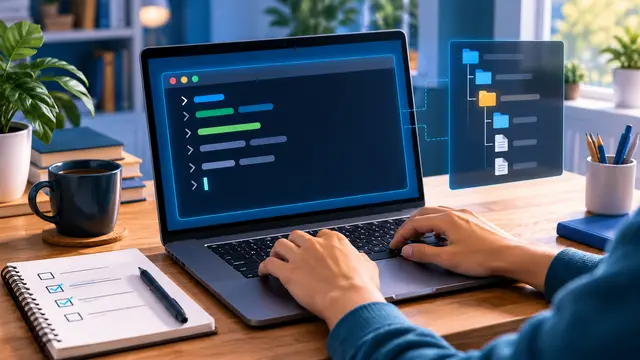
Many beginners meet the command line as a black window full of unfamiliar symbols, then decide it belongs to advanced developers. That reaction is understandable, but the command line is simply a direct way to tell your computer where to look, what to create, and which tool to run. In a short self-paced lesson, you can learn enough to move through folders, inspect files, and start a small project with confidence.
This guide explains the small set of command line ideas that make the first practice session useful: your current location, folders and files, paths, commands, output, and safe recovery when something does not work. You will see how these skills support web development, Python, Git, automation tools, and everyday troubleshooting. You will also get a first project you can complete without building a large application.
The goal is not to memorize dozens of commands. The goal is to understand the conversation between you and the computer. You provide a command and, when needed, a path or option. The computer reports what it found or what it changed. Once that pattern feels normal, many technical tutorials become less intimidating because you can follow the instruction instead of guessing what the screen means.
A graphical file manager is excellent for browsing and dragging files. The command line adds speed and precision. It lets you repeat a task, use a tool from inside a project folder, and see details that a visual window may hide. That makes it a practical foundation for a coding course, an automation course, or any learning path where tools are installed and used from a terminal.
A first session can stay deliberately small. Open a terminal, identify your location, list what is there, create a practice folder, add a note, and inspect the result. These actions build a mental map. You are learning that a folder is a location, a file is an item at that location, and a path is the route that connects the two.
Why It Matters for Businesses
Command line confidence is not only for people who plan to become software engineers. Small businesses and working teams use technical tools for websites, data cleanup, backup routines, reporting, forms, and workflow automation. A beginner who can follow a setup guide carefully can contribute sooner and ask more useful questions when a tool needs attention.
Consider a marketing coordinator who needs to preview a website update. The command line can start a local preview tool from the correct project folder. Consider an operations assistant who receives a CSV export every week. Basic navigation can make it easier to place the file in a consistent location before a script or spreadsheet process uses it. Consider a small business owner learning automation. Understanding where a project lives helps separate a practice experiment from a live workflow.
These skills also improve communication between technical and nontechnical teammates. Instead of saying that “the computer is not working,” a learner can describe the folder they opened, the command they ran, and the exact error message returned. That detail shortens troubleshooting conversations and prevents a teammate from repeating steps that already failed.
The business value is modest at first, but it compounds. A person who can run a local web project, read a configuration file, or collect a clear error message does not have to wait for every tiny task. They still need judgment and permission for important changes, but they can handle the predictable setup work around a project.
A beginner-friendly command line course should connect each concept to a work situation:
- Finding a project folder before previewing a website.
- Creating a clean place for practice files and exports.
- Checking whether a file exists before asking an automation to use it.
- Running a development tool and stopping it safely.
- Copying an error message so another person can diagnose it.
The most important business habit is caution. A command can be fast, but speed does not make an action safe. Learners should practice in a dedicated folder, read a command before pressing Enter, and avoid destructive instructions until they understand exactly what they do. A short course should make that caution feel normal rather than treating it as an afterthought.
The Practical Automation Opportunity
The command line becomes much easier when you learn it through a small, repeatable project. You do not need to build a full application. You can make a “weekly files” workspace that teaches navigation, file creation, inspection, and repeatable steps.
Start by writing down the intended result: a folder with a notes file, a subfolder for incoming files, and a simple record of what you practiced. Then work through the tasks one at a time. The point is to notice what changes after each command, not to type a long block without understanding it.
- Create a practice folder in a safe location. Give it a clear name such as command-line-lab so you know it is a learning space.
- Move into that folder and confirm your current location. This prevents you from creating files in an unexpected place.
- List the folder contents. At the beginning, an empty result is useful because it confirms that you are looking at a new workspace.
- Create a notes file and a subfolder for sample exports. Keep the names simple so you can focus on the path structure.
- Add a few lines to the notes file using a familiar editor, then return to the command line and verify that the file exists.
- Enter the subfolder, inspect it, and return to the parent folder. Notice how your location changes as you move through the tree.
- Run one harmless tool, such as a version check for a program you already installed. Read the response instead of treating it as noise.
- Write down one command that worked, one message you did not understand, and one question for your next lesson.
This exercise teaches several habits that transfer directly to automation. A workflow needs a known starting point, predictable inputs, an action, and a way to confirm the result. When you use a no-code tool, you still think in those terms. The trigger is the starting point. The data is the input. The connected action changes something. A test run tells you whether the result matches your expectation.
The same structure appears in a coding project. A web tool must be started from the right project folder. A package manager must know which project configuration to read. A script may look for a file at a particular path. If the tool reports that a file is missing, the command line gives you a way to inspect the location instead of guessing.
Beginners often make progress faster when they practice three forms of evidence:
- Location evidence: What folder am I in right now?
- Input evidence: What files and settings are available here?
- Result evidence: What changed after I ran the command?
These checks are simple, but they prevent the most common early mistake: assuming that a command failed when it actually ran in a different folder, or assuming that it succeeded when the output was never inspected. A course can turn each check into a short exercise with a visible answer.
There is also a useful connection to AI-assisted learning. An assistant can explain an unfamiliar command, but the learner should provide context and verify the answer. Ask what the command does, what folder it expects, what it might change, and how to undo the change. Then test harmless examples in the practice workspace. This turns AI into a tutor for reasoning rather than a button that blindly executes instructions.
A good course project can grow in stages:
- Stage one: navigate and inspect a folder tree.
- Stage two: create and organize simple files.
- Stage three: run a local tool and read its output.
- Stage four: use a small script to repeat a safe, visible task.
- Stage five: connect the project to Git so you can track changes.
Each stage gives you a concrete result and a chance to pause. If the learner is unsure, the right response is to stop, record the current location and message, and ask a focused question. That is a stronger habit than copying a complicated command from a search result.
Command line learning also supports better course selection. If you want to build websites, choose a path that includes navigation, a code editor, a local preview, and Git basics. If you want to learn Python, look for file paths, running scripts, and reading output. If your goal is automation, find lessons that explain inputs, permissions, testing, and logs. The best first course is not the one with the most tools. It is the one that helps you complete a small task and understand why each step works.
Business Takeaway
The command line is a small but powerful learning lane because it teaches you how tools find information, perform actions, and report results. You do not need to become a systems administrator to benefit from it. A few clear concepts can make web projects, coding exercises, Git workflows, and automation setup feel more manageable.
Choose a beginner course or lesson that includes guided practice, safe explanations, and a project you can inspect after each step. Look for plain language, not a wall of unexplained commands. You should finish knowing how to confirm your location, read a folder, recognize a path, run a harmless tool, and describe an error clearly.
This week, create one dedicated practice folder, navigate into it, make a notes file and a sample subfolder, and record what each step changed. That small log will give you a useful first command line project and a calmer starting point for the next skill you learn.