What Happened
Many beginners learn to build a web page by focusing on what it looks like in a browser. Accessibility adds a second question: can people with different devices, abilities, and ways of navigating understand and use the page? This guide explains the first accessibility checks worth learning, why they matter to businesses, and how to practice them by improving one small page instead of trying to memorize a giant standard.
Accessibility is not a finishing decoration. It is a way of making the structure and purpose of a page clear. A learner who understands headings, labels, keyboard focus, color contrast, alternative text, and useful link names can build a page that works for more people and is easier for everyone to maintain.
A practical first exercise is a simple course sign-up or contact page. It might contain a heading, a short explanation, an image, a few form fields, and a submit button. That page is small enough to inspect carefully, but it includes the same decisions that appear in larger sites.
Start with the page outline. A good document has one main idea, represented by a clear main heading, followed by sections that use headings in a logical order. A heading should describe the content that follows it, not merely make text look large. When a page jumps from a large heading to a tiny heading because the designer likes the size, the visual hierarchy may look acceptable while the information hierarchy becomes confusing.
For a beginner, the first checklist can be simple:
- Use one clear main heading for the page topic.
- Group related content under descriptive section headings.
- Keep heading levels in a sensible order.
- Use lists for groups of related items instead of typing separate lines with spacing.
- Make the page understandable even before colors and decorative images are added.
The next lesson is semantic HTML. An element tells the browser what a piece of content is for. A real button communicates an action. A label identifies a form control. A navigation element identifies site navigation. A paragraph marks ordinary text. Choosing an element for its meaning gives browsers and assistive tools information they cannot reliably infer from visual styling alone.
This does not mean beginners need to avoid CSS or build unattractive pages. It means structure should come from the page's content and purpose, while CSS controls presentation. A link that looks like a button may still be a link, and a heading that is only bold text may still be ordinary text. Learning to separate meaning from appearance is one of the most useful habits in frontend development.
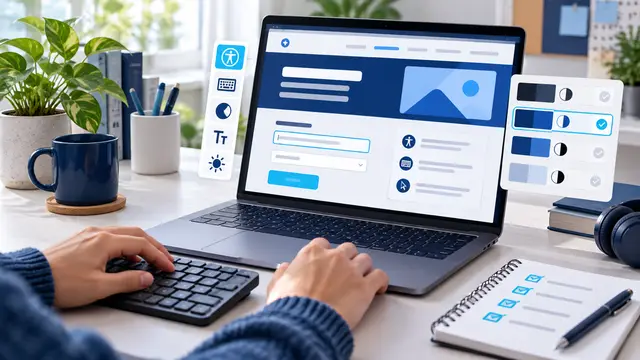
Forms are an especially valuable practice area. Every input should have a visible, connected label that tells the learner what to enter. Placeholder text can offer an example, but it should not be the only label because it disappears while the person types and may be difficult to read. A form should also explain what is required, what format is expected, and what happens after submission.
Try testing a small form without using a mouse. Press Tab and observe where focus moves. Can you tell which control is active? Does the order follow the page's reading order? Can you operate the button with the keyboard? If focus disappears against the background, the page may be technically navigable but practically frustrating.
Accessibility practice also improves visual design. Strong contrast helps someone reading on a bright phone screen, a low-quality monitor, or a page viewed in poor lighting. It helps people with some forms of color-vision difference, but it also helps tired users and anyone scanning quickly. Color should reinforce meaning, not carry the entire message. If an error is shown only with a red border, some users may not know what went wrong.
Images need the same kind of thought. An image that communicates information needs a short alternative description. A decorative shape may need no description, because announcing it would add noise. A useful description does not need to narrate every visible detail. It should explain why the image is present in the context of the page.
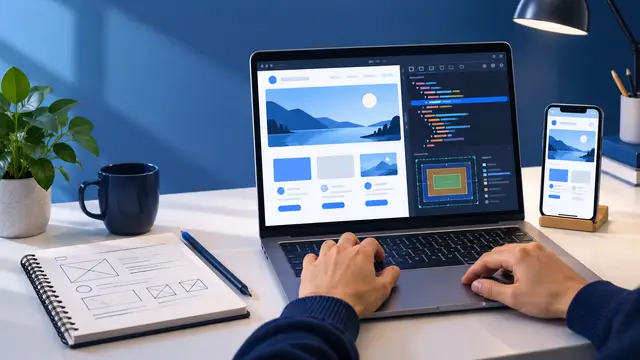
The best way to learn these ideas is to inspect a real small project. Build a page with a title, a two-sentence introduction, three feature cards, and a short contact form. Then review it in layers. First read the text without looking at the visual design. Next navigate by keyboard. Finally resize the browser and inspect the page at a narrow width. Each pass asks a different question about whether the interface is clear.
A self-paced course can make this process less overwhelming by turning a large subject into short decisions. Instead of asking whether an entire website is accessible, a beginner can practice one skill per lesson: document structure, labels, focus, contrast, image descriptions, and error messages. Each skill becomes easier to remember when it is attached to a small page that the learner can actually open and test.
Why It Matters for Businesses
Businesses depend on websites, forms, portals, and internal tools to help people complete tasks. When a page is hard to navigate, the business may lose a prospect, receive incomplete information, or create extra work for a support team. Accessibility is therefore connected to clarity, reach, and operational quality, not only to a technical checklist.
A small business owner may notice the problem when a contact form receives vague messages because field instructions were unclear. A hiring team may see it when an application process is difficult to use on a phone or keyboard. A service company may discover that customers cannot identify the next step because links use vague labels such as “click here.” These are learning opportunities for anyone responsible for a website or workflow.
Teams also benefit when employees share basic accessibility vocabulary. A designer can ask whether the page has a clear reading order. A content writer can provide descriptive headings and link names. A developer can preserve semantic structure while adding styles and interactions. A project manager can include keyboard testing in a review instead of discovering usability problems after launch.
Practical skills to carry into workplace projects include:
- Writing headings that help a reader scan the page.
- Connecting labels and instructions to form controls.
- Checking that keyboard focus is visible and predictable.
- Explaining images according to their purpose.
- Using color, spacing, and layout without hiding essential meaning.
- Testing a page at a narrow width and with a keyboard.
These habits can reduce rework. When a page begins with clear structure, later CSS and JavaScript changes have a stronger foundation. When a form has meaningful labels and messages, it is easier to connect to a CRM or automation workflow. When a team documents why a field exists, future edits are less likely to remove an important instruction.
Accessibility is also a confidence skill for beginners. A learner who can explain why a real button is better than a styled text element is doing more than copying syntax. They are learning to think about the person using the product. That perspective is valuable whether the learner becomes a frontend developer, a marketer managing landing pages, a business owner editing a site, or an employee improving an internal process.
A short course does not need to turn a beginner into a specialist overnight. It can help the learner recognize common problems, make careful improvements, and know when a more advanced review is needed. That is a useful boundary: learn enough to build responsibly, then keep learning as the project becomes more complex.
The Practical Automation Opportunity
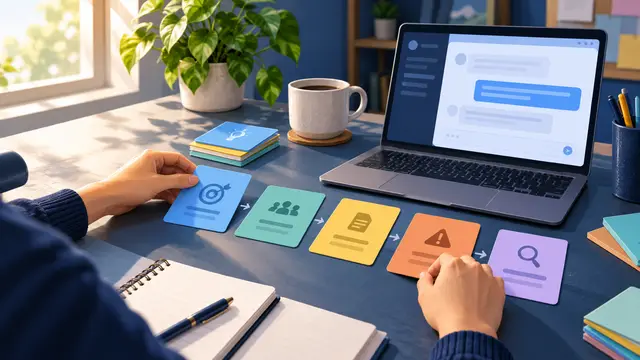
Accessibility practice can become a repeatable workflow instead of a one-time inspection. A beginner might create a review checklist and use it every time a page changes. A team might add a short accessibility pass to its content, design, and development process. The opportunity is not to replace human judgment with a score. It is to make good questions easier to ask consistently.
Start with a first-project review loop:
- Choose one small page, such as a contact page or course landing page.
- Write down the page's main purpose in one sentence.
- Read the headings and links in order without relying on the visual layout.
- Move through every interactive element with the keyboard.
- Check labels, instructions, focus visibility, color meaning, and image descriptions.
- Fix one structural problem before polishing visual details.
- Retest the page and record what changed.
A learner can extend this exercise with basic automation. For example, a simple project script can remind the team to review a changed page, attach a checklist to a task, or collect the names of pages awaiting review. A no-code tool can route a form submission to a shared inbox while preserving clear confirmation text for the person who submitted it. The automation is useful because it supports a human review step, not because it declares a page perfect.
There is also a direct connection to HTML, CSS, and JavaScript courses. HTML provides the document structure and meaningful controls. CSS can keep focus states visible, maintain contrast, and support flexible layouts. JavaScript can add interactions, but it also introduces responsibilities: dialogs need sensible focus behavior, error messages need to be announced clearly, and custom controls need to remain usable with a keyboard.
Useful practice projects include:
- Improve a plain contact form by adding labels, required-field guidance, and clear error text.
- Rework a three-card feature section so each card has a meaningful heading and reading order.
- Add a visible focus style to a navigation menu and test it without a mouse.
- Replace vague link text with labels that describe the destination or action.
- Review a color palette and add non-color cues for status, warnings, and errors.
Avoid a common beginner mistake: treating an automated audit score as the entire assignment. Automated tools can catch missing labels, some contrast problems, and certain structural patterns. They cannot fully judge whether a heading is meaningful, whether instructions are understandable, or whether a custom interaction makes sense to a real person. Use tools to find clues, then inspect the page yourself.
Another mistake is trying to fix everything at once. If a learner starts with a long technical list, the project can feel impossible before the first improvement is made. A better sequence is to choose one page, define its main task, and fix the issues that could prevent that task from being completed. That keeps the practice concrete and gives the learner a visible result.
A course built around small outcomes can make this workflow approachable. One lesson can teach structure, another can teach form labels, and another can teach keyboard testing. The learner can keep the same project throughout the lessons, seeing how a page becomes clearer with each pass. That is more memorable than reading disconnected definitions and hoping they will make sense later.
For a busy professional, the weekly version can take less than an hour. Review one page, write down three observations, fix one issue, and ask one colleague to try the page using a keyboard or a phone. Save the notes with the project. Over time, the team builds a practical record of what it checks and why those checks matter.
A good beginner project is small enough to finish and real enough to teach a decision.
Business Takeaway
Website accessibility basics give beginners a practical way to connect frontend code with real user outcomes. The learner practices structure, labels, focus, contrast, images, and testing while building something a business could actually use. Those skills support better websites, clearer forms, more reliable handoffs, and stronger judgment when AI or automation tools are added later.
This week, choose one small page you can edit, navigate through it with only the keyboard, and fix the first issue that prevents the page's main task from being completed clearly.