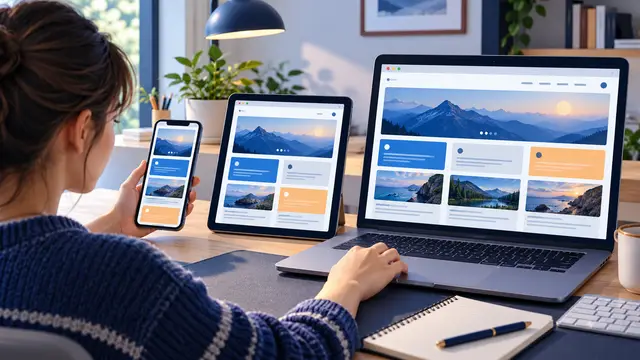
What Happened
A page can look polished on a laptop and still become frustrating on a phone. Text may run beyond the screen, buttons may become too small to tap, images may push the layout sideways, and a multi-column section may force readers to zoom and drag. Responsive CSS teaches beginners how to make one page adapt to different screen sizes so visitors can read, tap, and move through the content without fighting the layout.
This skill matters because a first website is rarely viewed in one predictable window. A potential customer may discover a page on a phone, return to it on a laptop, and share it with someone using a tablet. In this guide, you will learn the practical ideas behind responsive design, the beginner mistakes that cause broken layouts, and a small practice project you can complete in a self-paced course or during a focused study session.
Responsive design is not a special version of HTML. HTML still provides the content and structure. CSS controls how that structure fits the available space. A responsive page uses flexible measurements, sensible layout rules, readable type, and a few intentional breakpoints instead of a separate page for every device.
The first useful mindset shift is to stop designing for a specific phone model or laptop size. Design for content. Ask how wide a paragraph should be, how much room a button needs, and when two side-by-side items should become a vertical stack. Once those questions are clear, the CSS becomes easier to choose and test.
Imagine a beginner building a course landing page with a headline, a short explanation, three learning outcomes, and a signup button. On a wide screen, the outcomes may sit in three columns. On a narrow screen, those same outcomes should form a readable vertical list. The content has not changed. The arrangement has changed because the available space changed.
One of the best first exercises is to build the page with a narrow screen in mind, then add room for wider screens. This approach is often called mobile-first design. It encourages you to establish a clean reading order before adding columns, decorative spacing, or larger visual treatments.
Start with a simple page structure:
- A header with a site name and one navigation link.
- A main section with a headline and a short paragraph.
- A group of three learning outcome cards.
- A final action button or contact block.
At the narrowest width, let each element use the available space without forcing the visitor to scroll sideways. Then test what changes when the viewport becomes wider. The goal is not to make every screen look identical. The goal is to make every version feel intentional.
The viewport is the visible area of the browser window. Responsive CSS uses it as a clue, not as a guarantee. A viewport can be wide on a desktop, narrow on a phone, or somewhere in between when a user resizes a window. Testing at only one width hides problems that appear at the edges.
Use a browser’s responsive preview to check several widths. A page that works at 390 pixels may still fail at 320 pixels. A layout that looks good at 1024 pixels may have an awkward gap at 700 pixels. You do not need to memorize every device dimension. You need to notice where your content stops fitting comfortably and decide what should happen next.
Responsive design also builds useful debugging habits. When something overflows, do not immediately add a random negative margin or hide the problem. Inspect the element, identify the width it requires, and find the rule that prevents it from shrinking. This kind of reasoning is more valuable than memorizing a long list of CSS properties.
Why It Matters for Businesses
For a business, a responsive page is part of basic communication. A visitor should be able to understand an offer, find an important detail, or complete a simple action without needing a large monitor. Small layout failures can make a company appear less careful even when the underlying service is strong.
Responsive skills are especially useful for small business owners and working professionals who need to update a page without waiting for a full redesign. If you can recognize a fixed-width problem, adjust a layout, and test the result, you can handle many small improvements with more confidence.
A responsive page helps a team present information consistently across common situations:
- A customer checks pricing from a phone while away from a desk.
- An employee opens an internal form on a tablet during a meeting.
- A job candidate reviews a careers page from a small laptop.
- A local business shares a service page through a mobile message.
These are not advanced scenarios. They are ordinary moments in which layout quality affects whether someone continues reading. Practical CSS training helps learners connect a visual result to a business outcome: clearer information, fewer abandoned forms, and a more trustworthy first impression.
Responsive thinking also improves collaboration. A designer, marketer, or business owner can describe a problem more clearly when they understand the difference between content width, spacing, and layout behavior. Instead of saying that a page feels strange on mobile, they can report that the card row overflows at a narrow width or that the button label wraps into an awkward shape.
That vocabulary reduces guesswork. It gives a small team a shared way to discuss what needs to change and why. A beginner course does not need to turn every learner into a visual designer. It can teach enough CSS to identify the problem, make a reasonable adjustment, and know when a larger change is needed.
Responsive design also supports accessibility. People may enlarge text, zoom the page, or use a device with a narrow display. A layout that depends on fixed heights and tiny text can become difficult to use quickly. Flexible containers, readable line lengths, visible focus states, and controls with enough space help more people interact with the page.
There is a practical business lesson here: a website is not a poster trapped at one size. It is an interface used in changing conditions. Learning responsive CSS teaches you to design for those conditions instead of assuming every visitor sees the same screen.
When choosing a course or practice path, look for lessons that show the result in a browser and explain why the CSS works. A list of properties is less useful than a guided exercise that begins with a crowded layout, identifies the cause, and improves it step by step.
The Practical Automation Opportunity
Responsive CSS is not usually automated by pressing a single button. The useful opportunity is a repeatable learning workflow that makes testing faster and more consistent. A learner can build one small page, record the widths that need attention, make one change at a time, and keep a short checklist for future pages.
Create a practice project called “One Page, Three Widths.” Build a simple course introduction page with a heading, two paragraphs, three cards, and a button. Use fictional content so you can concentrate on layout. Test it at a narrow phone width, a medium tablet width, and a wide desktop width.
Follow this sequence:
- Write the HTML in a clear reading order before adding columns.
- Add a narrow layout with flexible widths and comfortable padding.
- Use a layout tool such as Flexbox or Grid for the card group.
- Add one breakpoint only when the content needs a different arrangement.
- Check for horizontal scrolling and identify which element caused it.
- Resize the viewport slowly and note where the layout starts to feel crowded.
- Test keyboard focus and make sure the action button remains easy to find.
The exercise becomes more useful when you keep a before-and-after record. Take a screenshot of the crowded version, write down the problem in plain language, then capture the improved version. For example, you might note that the cards were fixed at 300 pixels wide, so three cards could not fit inside a 320-pixel viewport. Your change might allow the cards to stack until there is enough room for columns.
This workflow can be supported by simple tools. Browser DevTools can show the box model, computed styles, and responsive preview. A code editor can help you search for fixed widths and repeated rules. A version-control habit lets you save a working layout before trying a larger change. None of these tools replaces understanding. They shorten the distance between a question and useful evidence.
AI can also support practice when used carefully. A learner might ask for an explanation of why a particular element overflows, then compare the explanation with DevTools and the actual CSS. Another useful prompt is to request two possible fixes and the tradeoff of each. The learner still needs to test the code because generated CSS can be overly broad, remove useful spacing, or hide an issue rather than solve it.
Use AI as a study partner, not as a substitute for looking at the page. A strong practice cycle looks like this:
- Describe the visible problem without guessing at the cause.
- Ask for a short list of possible causes.
- Inspect the relevant element in the browser.
- Change one rule and test the result.
- Explain in your own words why the fix worked.
That last step turns a one-time correction into a reusable skill. If you can explain why a container needed a max-width, why a card group needed to wrap, or why a fixed height made text unreadable, you are learning a method rather than collecting snippets.
Avoid the common beginner trap of adding a media query for every device. Too many breakpoints can make a stylesheet difficult to reason about. Start with the content, use fluid sizing where it makes sense, and add a breakpoint when the structure genuinely needs to change. A small number of clear rules is easier to maintain than a long chain of emergency overrides.
Another practical habit is to test real content. Placeholder words may fit while a real headline wraps onto four lines. A short button label may work while a longer call to action breaks the layout. Use realistic sentence lengths, longer names, and a few different image proportions while practicing. The goal is to learn how the page behaves when content changes.
If you are learning CSS through a short course, choose a project that ends with a visible page you can revisit. A responsive course landing page, service card, event invitation, or personal project summary can become a small portfolio piece. More importantly, it gives you a place to practice the cycle of inspect, adjust, resize, and explain.
Business Takeaway
Responsive CSS is a focused skill with an immediate payoff. You do not need to master every layout feature before making a better page. Learn how flexible widths, readable spacing, Flexbox or Grid, and a small number of breakpoints work together. Then prove the ideas with one page that remains comfortable at three different widths.
This week, create a fictional course or service page, test it at a phone, tablet, and desktop width, and write down one layout problem plus the CSS rule that solved it. That small record can become the beginning of a practical frontend portfolio and a clearer next step in an HTML and CSS course.